Hi all. It’s been 20 years since I used Clarion. I have an app in Clarion 12 that I need to import data into. I need to allow the user to create the import file outside of Clarion then select the file on disk and import it. I would also like to allow the user to assign columns to fields needed in the import. Say have a drop list where their field may be customernum and my field may be CustomerID. What control would I use to select the disk file and how would I assign that file name to my ASCII table. I plan on having a window where they select the file then a browse where they can preview their data and assign the fields. Thanks.
Michael look up filedialog or filedialoga to select file. Filedialoga is the newer, improved version.
If you are doing this as a learning experience then sure code it yourself. If, however, you just want it done asap then consider third party tools that might provide this or similar functionality.
BoxSoft Super Import-Export and
Sterling Data IMPEX
are two that spring to mind but there are probably others.
Hth
Geoff R
You can use the DOSFileLookup control template to select the file.
Then myfile{PROP:Name} to assign the name to your ascii table (before you open the data file – you may have to set the file not to open by default, cos that might happen before you set the name.
Your most intuitive approach to matching the two sets of name would be to have two lists and be able to drag and drop from one to the other to match them. You need to set the DragID and DropID. PropList:MouseUpRow will let you know the row on which a dragged item is being dropped. However, that requires the most manual work of the user: they have to match every field themselves. In the import tools I use for Oracle they have two built-in methods (match by name and match by position). For things you have to adjust manually you select the import column name and select the matching target column from a dropdown list of the columns in the table.
Thank you JonW. I will give it a try.
I use @BoxSoft Mike’s Super Import/Export and it is very flexible.
One simpler way to match fields is by Column number. You can roll your own using a simple BASIC file with an Array for the data:
BDFBUD  FILE,DRIVER('BASIC'),PRE(Bud),THREAD
Record      RECORD,PRE()
Columns        STRING(100),DIM(100)
            END
        END
On a Window specify the columns to let user change.
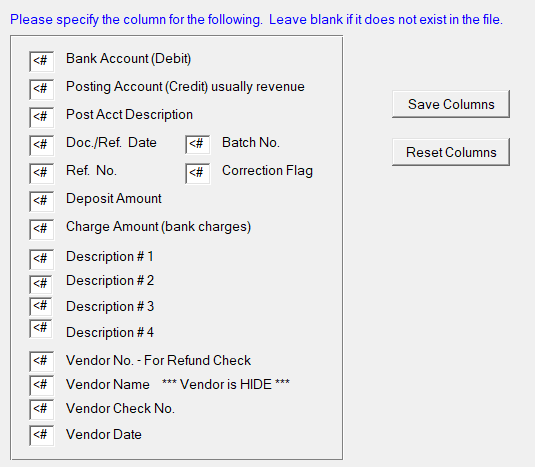
Something I should do is read the first 2 rows of the file and put it in a simple LIST out to the side to see Column Numbers and actual Heading and Data. Here’s a mockup:
Column|Heading|Data Sample
1|Debit Acct|01-333-555
2|Credit Acct|23-444-666
3|Reference|A98797
4|Amount|12345.67
Put the Columns in a GROUP to make it easier to manage i.e. Clear, Load, Save, etc. You can use WHO() to get the variable label to use in a PUTINI/GETINI.
ImportColumsGrp   GROUP,PRE(Col)
BankAcct   BYTE
PostAcct   BYTE
PostDesc   BYTE
RefDate    BYTE
RefNo      BYTE ...
In a process that reads the BASIC file each record is an array BUD:Columns STRING(128),DIM(100) that you access with your Column numbers. On my window some are required, so I know they cannot be zero.
PostTranM:PostingDate = DEFORMAT(BUD:COLUMNS[Col:RefDate],@d02)
PostTranM:RefNo       = UPPER(Bud:Columns[Col:RefNo])
PostTranM:Debit       = DEFORMAT(Bud:Columns[Col:Charge])  !DeFormat removes commas
PostTranM:Credit      = DEFORMAT(Bud:Columns[Col:Deposit])
If you allow Column Numbers to be zero you must check <> Zero. Probably should always check because a zero would cause a Subscript Out of Range Error and end the program.
PostTranM:Desc1=Bud:Columns[Col:Desc1]     !comment 1 required
IF Col:Desc2 THEN PostTranM:Desc2=Bud:Columns[Col:Desc2].
IF Col:Desc3 THEN PostTranM:Desc3=Bud:Columns[Col:Desc3].
IF Col:Desc4 THEN PostTranM:Desc4=Bud:Columns[Col:Desc4].
This is likely overkill for your purpose, but its worth reading the new file driver IMPORT command.
https://capesoft.com/docs/Driverkit/ClarionObjectBasedDrivers.htm#import
Main advantage here is that the CSV columns are mapped by header name (so the user can export the columns in any order, just order the header appropriately.
Currently working for SQLite, MSSQL and PostgreSQL.
I tried BoxSoft SIE but could not get past compile errors. I am still working on that.